 IMS5000 Manual
IMS5000 Manual
IMS5000 Manual
Note: only users of security level 3 or 4 can create new programs or fixtures.
Once logged into IMS5000, click on File → New (Ctrl + N) to display the drop-down list.
Click on “Program” to open up the program editor window.
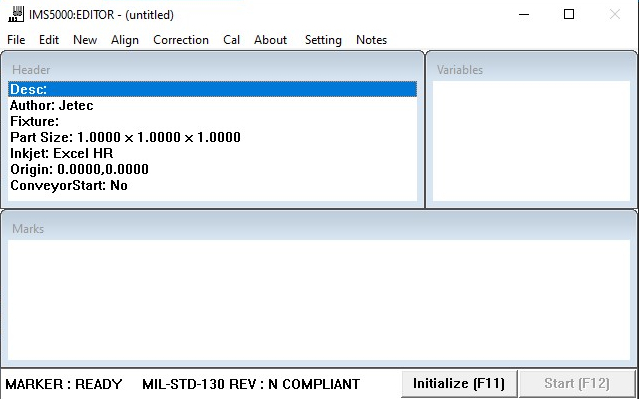
Notice in the window the ribbon options are now “File”, “New”, “Align”, “Correction”, “Cal” and “About”.
Before running a program, a Fixture needs to be selected.
The File Menu Provides the following options:

Test Ctrl+T
This command allows the test printing of a created or modified program within the IMS5000 editor window.
Save Ctrl+S
Allows for the saving of a new marking file or changes to an existing markings file.
Save as...
Saves changes under a difference marking file name. For example, if there is an existing template “Save As…” will allow creating a new and different marking file program.
“Save As…” will display the following message box, you will need to type a new name and then click OK.
Quit
Allows the user to exit the Program Editor and return the the File Window.
If a user tries to quit out on an unsaved marking file, a save prompt will ask the user if they would like to save before exiting.
Shutdown
Same details as in Getting Started
Clean
Same details as in Getting Started
This menu is used to create new variables or marks.
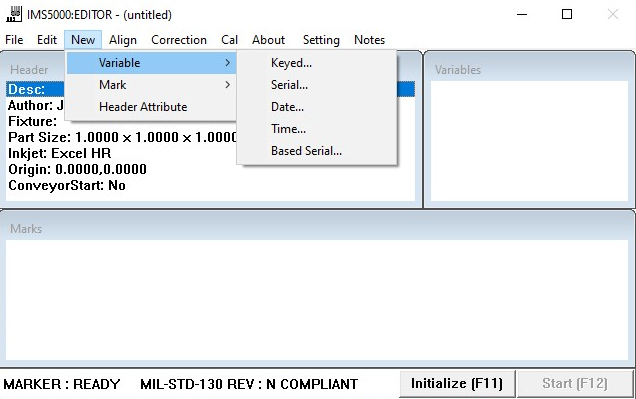
Variables
Variables have to be declared before they can have a value assigned to them. Click on New → Variable → (Type of Variable) to create any needed variables.
Marks
Marks are the markings that will be printed to the surface. They can be any combination of variable or static information.
Header Attribute
Header attributes are details that affect all marks. They can also be set to affect all new programs.
Modify
Double click on an existing variable or mark to display the editor.
Delete
To delete a variable or mark, single click on the name. Once highlighted, press the Delete key and a message dialog will appear.
Click on 'Yes' to confirm deleting the variable or mark.