 IMS5000 Manual
IMS5000 Manual
IMS5000 Manual
The login window is comprised of three sections:
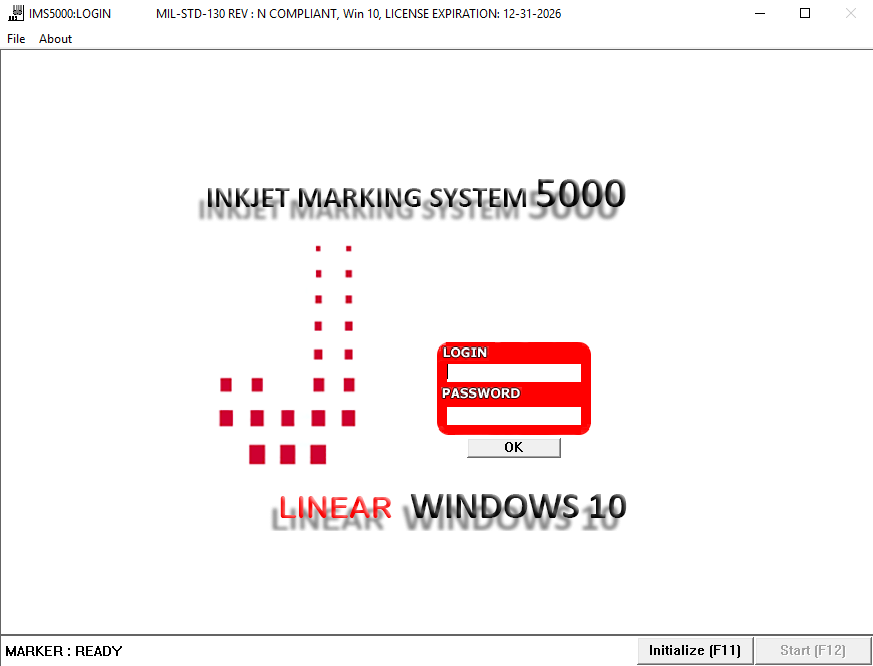
The window control section allows the user to control the window with a standard Microsoft Control Menu to minimize or maximize the window.
Click on “File” to display the file pull down menu. The file menu provides the following options:
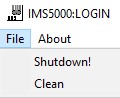
SHUTDOWN COMMAND
Click on Shutdown to activate the shutdown procedures of the selected ink jet printer. Shutdown should be used prior to cleaning the ink jet head or when the ink jet printer needs to be placed in idle mode. Click on Print On to remotely open the nozzle and set the printer to print mode.
CLEAN COMMAND
Click on Clean to move the print head to the cleaning position (this is the position that makes it easier to remove the print head from the stainless steel sleeve). You can select this when the system is in “Ready” or “Print Off” mode.
ABOUT COMMAND
Click on About to provide information on the software. It identifies the software name, version number copyright date, serial number, and name of licensee.
This contains the Marker Status box (lower left), Initialze, Move, and Start buttons.

OFFLINE
Indicates the system is offline and would require initializing. When first accessing IMS5000, the marker status will be OFFLINE. The file editor can still be accessed while the marker status is in this state.
Whenever a device error message is displayed, the marker status state will change to OFFLINE.
INITIALIZING
Indicates the initialize process has been activated (after clicking the initialize button).
PRINTOFF
Indicates the selected ink jet device is not in the print state. In most cases, the print button on the printer needs to be pressed.
READY
Indicates the ink jet marking system is ready for printing.
Clicking on this performs initialization and brings the ink jet marking system to the READY state. The following will occur during the initialization process.
Once initialized, the following will occur:
While in a Program, if the printer is running, the button will show “Start”. Once the Start button has been pressed it will change to “Cancel”.
In order for printing to be initiated, the Start button must be activated and the Marker Status must be READY. Click on Start to initiate the ink jet marking engine to print the selected marking file.
Once Cancel is clicked, it will stop the marking process after the current mark is completed. The cancel button will then change to “Start”.
To login, click on the ID box, enter your User ID (maximum 8 characters) using either a keyboard or a barcode input device. The ID text box will display all characters as theya re typed in or read using an input device (i.e. a bar code reader).
Tab or click into the Password box, enter your password (maximum 8 characters).
Click on OK to authorize the information. Upon successful login, the IMS5000 files window will appear.